You can create new automations from the Course Content page.
- In the Course Assistants section, under Automations, select View automations.
- Select New Automation.
- Enter a name for your automation.
Select your automation type
- In the Automation gallery, there are currently two options. Select Configure for your choice.
- Send congratulatory message: Send a congratulatory message when students achieve a high score.
- Send supportive message: Send a supportive message when students do not achieve a specified score.
Set up the automation trigger
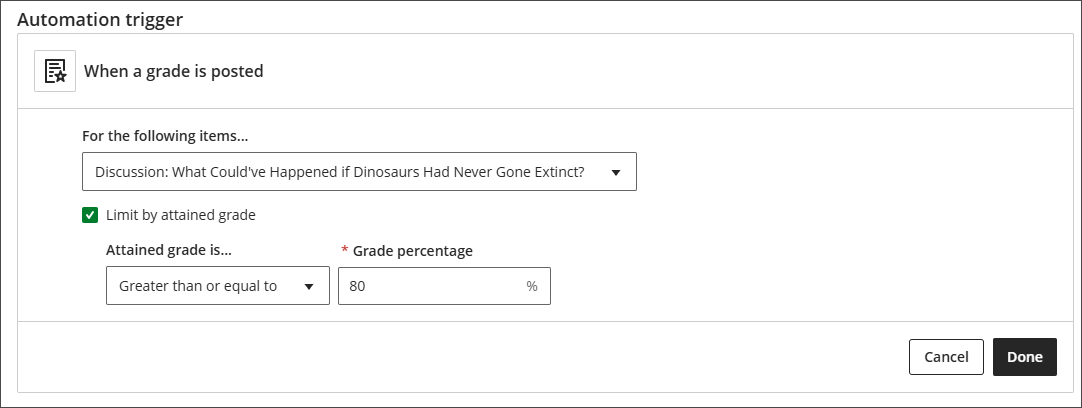
- The automation trigger determines when the system will act. The automation trigger is based on when a grade is posted. You need to specify:
- The grade item the trigger is based on. This can be any grade item in the course, or “All graded items.”
- Whether the trigger is limited by an attained grade. If selected, the student must meet certain grade criteria to trigger the action. If not selected, then the action will be triggered by the student’s completion of the grade item.
- The condition for the trigger—for example, “greater than” or “less than.”
- The grade percentage threshold for the trigger. This value must be a percentage, even if your gradebook uses score values.
Example;
The automation trigger in the following image is set up to act when a grade is posted for the grade item “Discussion: What Could’ve Happened if Dinosaurs Had Never Gone Extinct?” and the student has attained a grade greater than or equal to 80%. [view screenshot]
- When you finish setting up the automation trigger, select Done.
Now, when a new grade is posted for a student that triggers the automation, the message will be sent to that student.