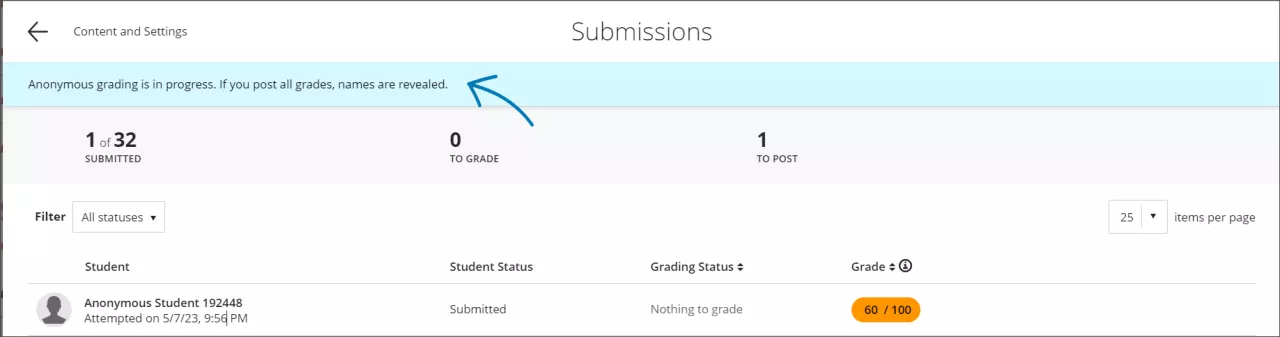
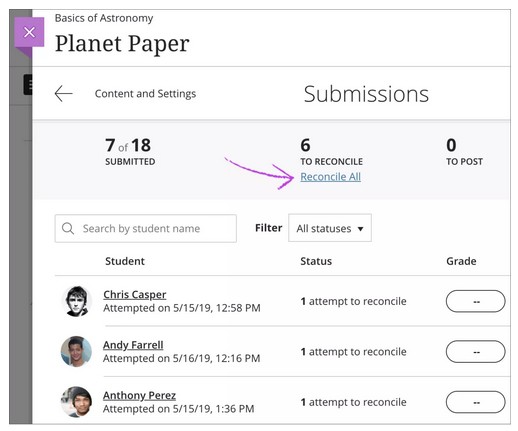
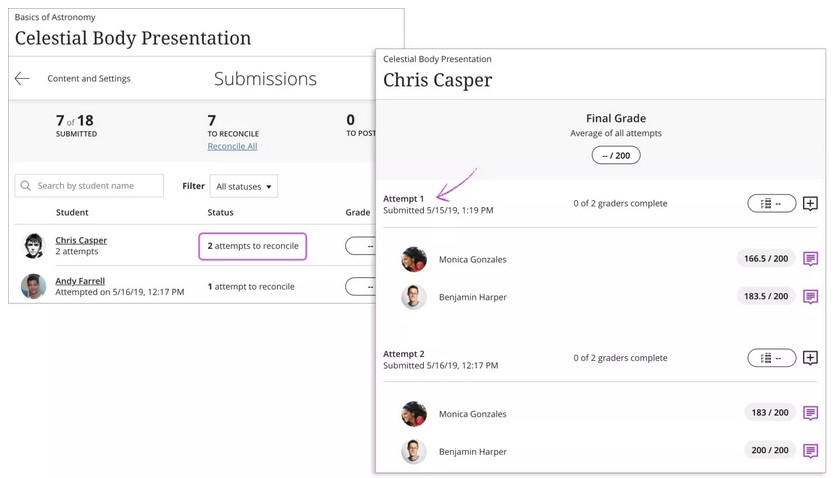
Grading anonymously helps faculty avoid bias in assessment by hiding student names while you grade. Names are revealed only after you post all grades.
To enable anonymous grading, open the Assignment settings by clicking the gear icon in the upper right or the Assignment canvas, then click the Hide student names checkbox under Anonymous grading.
Anonymous grading can only be enabled on Assignments. You can add files or text to an assessment you wish to grade anonymously. You can't change the anonymity after students open an assignment or submit attempts. [view screenshot]
You can enable SafeAssign for an Assignment or Test with Anonymous Grading enabled, but you will not be able to view SafeAssign results or Originality Reports until after all grades are posted. You cannot use peer review, automatic grade posting, or assessment results settings when anonymous grading is enabled.
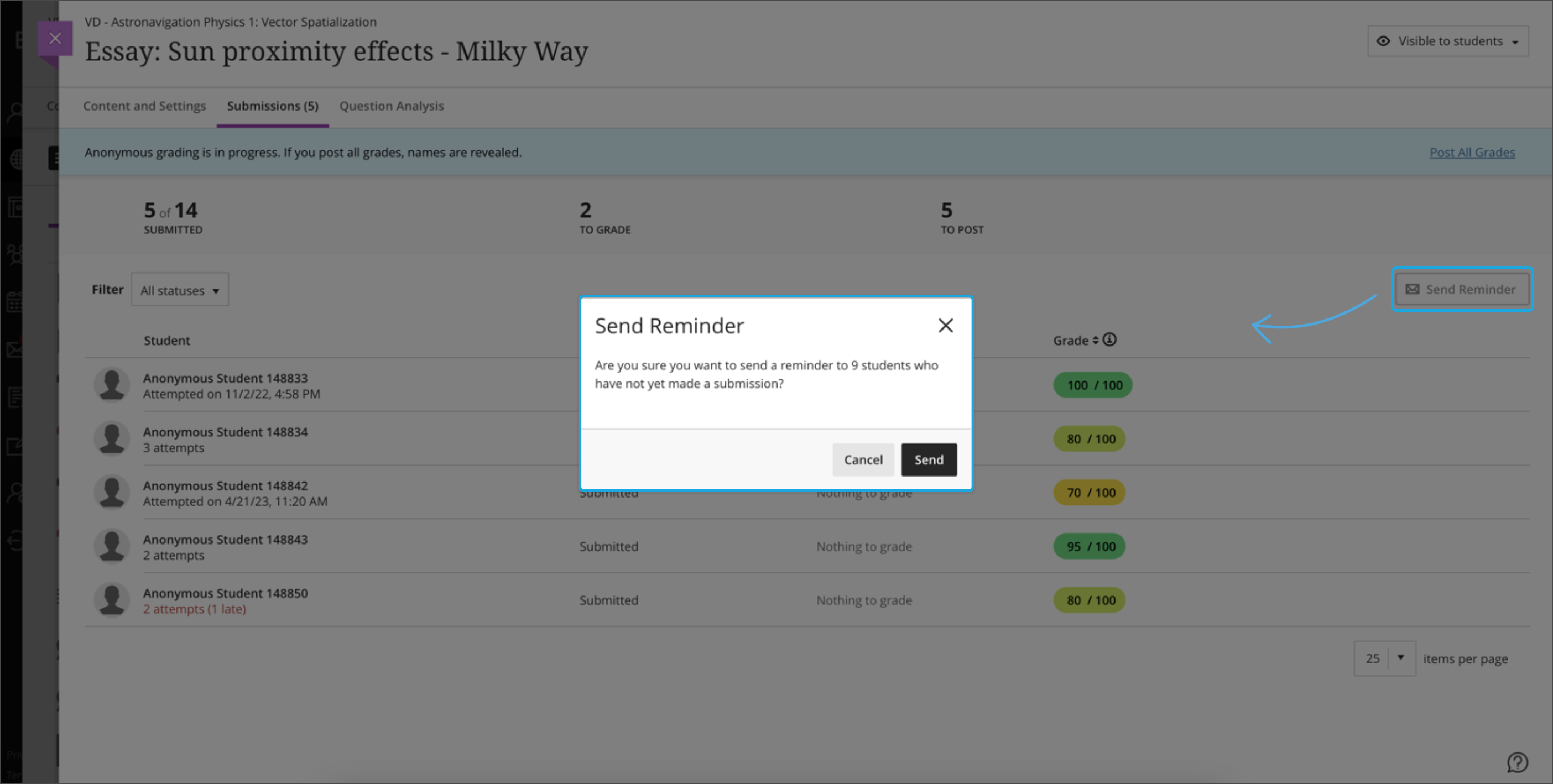
You can send a reminder to students who have not submitted even while anonymous grading is in place. To send a reminder, go to the Submissions list for the assignment and click the Send Reminder button. [view screenshot]
When you have finished grading all of the students, select Post all grades in the banner at the top of the page. This will lift anonymity and is not reversible. You will receive a warning message if you try to post all grades and lift anonymity before grading is complete. Once anonymity is lifted, you can still update posted grades and grade any late submissions.
For complete instructions on Anonymous Grading, visit the Blackboard Help Center.