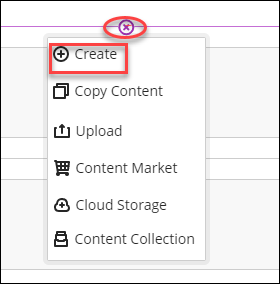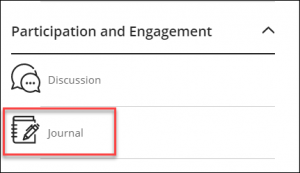









On the Course Content page, select the plus sign wherever you want to add a journal. Select Create, then scroll down to the Journal button at the bottom of the Create Item panel. You can also expand a folder or learning module to add a journal within them.
Enter a meaningful title to help students find the right journal in the content list. If you don't add a title, "New Journal" and the date appear on the Course Content page.
- In the Course Content area, hover your mouse where you want to add a journal and select the plus sign > Create. [view screenshot]
- On the Create Item panel, select Journal. The New Journal page will open. [view screenshot]
- On the New Journal page, add a title and a prompt to set expectations and guidelines.
- Add a prompt to set expectations and guidelines. You can use the options in the editor to format text, attach files, and embed multimedia. If you don’t add a prompt, there’s a message for students on the journal page that you haven’t added instructions for this journal.
- Show or hide the journal. New journals are hidden by default. Students can't access a journal until you choose to make it available to students. You can create all your content ahead of time and choose what you want students to view based on your schedule. You can also set availability conditions based on date, time, and performance on other items in the course gradebook. On the Course Content page, students can see when you set the journal to show.
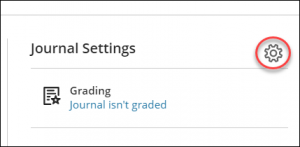
- Customize journal settings. In the Journal Settings panel, you can choose whether or not to allow users to edit and delete entries or comments. Under Goals & Standards, you can select Align with goals to ensure the activity measures the desired learning outcomes. To motivate students to post insightful contributions, you can make a journal count for a grade. Graded journals have more settings options available.
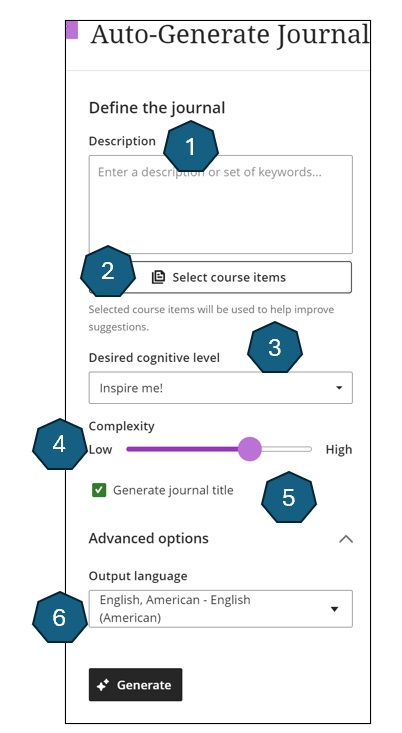
- Auto-generate a journal. If your institution uses the AI Design Assistant feature, you can use AI to create a journal. Select the Auto-Generate Journal button to bring up the creation panel.
- Incorporate video recordings with Video Studio. If your institution uses Video Studio, you can add audio and video recordings using Video Studio. When creating a new journal, select the Video Studio button in the content editor. Then follow the standard Video Studio workflow to add your recording.
- To set the journal as gradable, select the settings icon (top-right corner) to open the Journal Settings panel. When you choose to grade a journal, more options appear such as due date, maximum points, and adding a rubric. [view screenshot]